
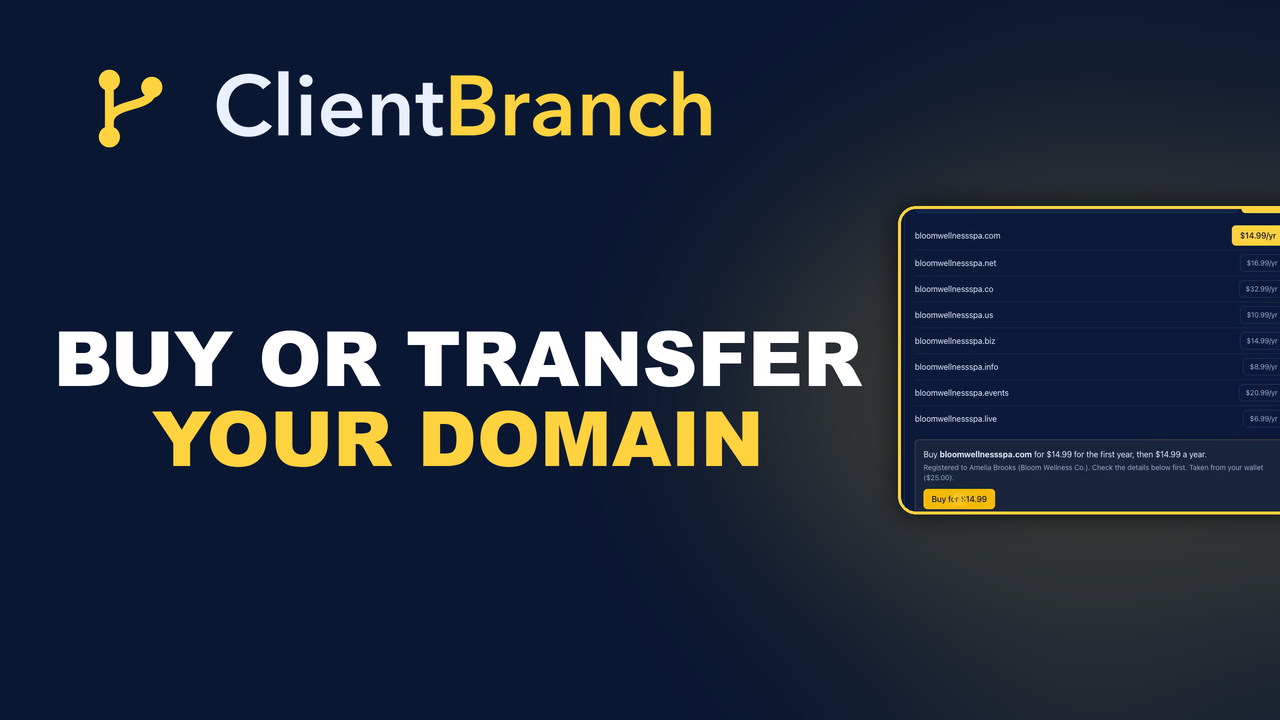
Buy or Transfer Your Domain Into ClientBranch, Then Run Its Website, Email and DNS From One Place
ClientBranch now sells and transfers domains. Buy a new one or bring yours over from GoDaddy, Namecheap or anywhere else, keep your email working through the transfer, set up Microsoft 365, Google Workspace or Zoho Mail in one click, and edit your own DNS records.
Ask a room full of small business owners where their domain is registered and you will get a lot of shrugs. It was bought years ago, by them or a web designer or a friend who was good with computers. It sits at a registrar they log into once a year when the renewal email arrives. The login is in a password manager, or in an old inbox, or nowhere at all.
That would not matter if the domain were just a name. It is not. Your domain is the address of your website and the address of every email you send and receive. Behind it sits a short list of settings called DNS records, and when one of those records is wrong or missing, your website stops loading or your email stops arriving. Usually nobody notices until a client says they never got your reply.
ClientBranch now has Domains. You can buy a new domain or transfer the one you already own, right inside the account you use for your website, bookings and email. It is registered in your name, it connects to your ClientBranch website in one click, and you can see and change every DNS record yourself. If you use Microsoft 365, Google Workspace or Zoho Mail, one button sets up your email records for you.
Watch it first
The video above starts with why your domain belongs in ClientBranch, then walks through buying a new name, transferring the one you own and putting a landing page on a subdomain. The rest of this post explains each part in more detail.
Why your domain belongs next to your website
Most of the problems people have with websites and email are not website problems or email problems. They are domain problems. The website builder is in one place, the email is in another and the domain is in a third, and each one needs the others set up in a particular way. Change one and something else breaks.
When the domain sits in the same account as your website, most of that goes away:
- Your website connects without any DNS. Click Use for my website and it is done, with SSL included, so visitors see the padlock instead of a security warning.
- Your settings are where you can see them. No hunting for a registrar login you last used two years ago.
- Renewals come out of the same wallet as your texts and phone number, 30 days before the domain expires, so it never lapses because a card expired somewhere you forgot about.
Buy a new domain in about a minute
Open Settings, then Domains, and stay on Buy a new domain. Type the name you want. You can type it with an ending, like yourbusiness.com, or without one, and ClientBranch checks the common endings for you, including .com, .net, .co, .us and .info.
Every name that is free shows its price for the first year. Click the one you want, check the owner details under Registered to (they come from your Business Profile), and click Buy. It is paid from your ClientBranch wallet, and if the wallet is short, a button tops it up and brings you straight back.
Within about a minute the domain is yours. If your website does not have a domain yet, the new one is connected to it automatically.
Transfer the domain you already own
If you already have a domain at GoDaddy, Namecheap or anywhere else, you can bring it over. Transferring a domain adds a year to it, so you never lose time you have already paid for.
- Log in where the domain is today. Open its settings, unlock it, and copy its transfer code (sometimes called an authorization code or EPP code). If DNSSEC is switched on there, turn it off.
- In ClientBranch, open Transfer a domain you own, type the domain and click See price.
- Paste the transfer code and click Transfer it.
Your current provider may email you to approve the transfer. Approving it speeds things up. Most transfers finish within a few hours, and some take up to five days, which is a waiting period the domain registries set, not ClientBranch.
Not sure where your provider hides the transfer code? Open a support ticket from Help, tell us where your domain is now, and we will send you the exact steps for that provider.
Your email keeps working through the transfer
This is the part that worries people most, and it is the part we spent the most time on. When a domain changes hands, its DNS records have to come with it. If they do not, email to that domain simply stops.
So before your transfer even starts, ClientBranch looks at the records your domain uses today: where your email goes, the records that prove your email is genuine, your website address and the settings your email app uses to find your mailbox. It saves a copy, and it loads those records into your new DNS while the transfer is still in progress. When the transfer finishes, everything is already in place. Your email keeps arriving, and your current website keeps loading until you decide to switch it to your ClientBranch website.
When it lands you get an email saying so, and the domain shows as Active in your list.
Set up email in one click
Setting up business email has always meant copying a handful of records from your email provider into your DNS, exactly, with no typos, and with the right priority numbers. One wrong character and mail goes nowhere.
Open Manage DNS next to your domain and click Set up email. Pick Microsoft 365, Google Workspace or Zoho Mail. If your provider gave you a verification code, paste it in, then click the button. Every record that provider needs goes in at once.
Two details matter here. First, mail for a domain can only go to one provider, so setting up email replaces any old email records rather than leaving them to fight each other. Second, there is a record called SPF that tells other mail servers which services may send email for your domain. A domain must only ever have one, and two of them quietly sends your mail to spam. ClientBranch updates the one you have instead of adding a second, so the email you send keeps landing in inboxes.
Manage your own DNS records
Sometimes you need a record that is not about email: a verification record for Google Search Console, a record a scheduling tool asks for, or a subdomain for something new. You should not need to open a support ticket for that.
Click Manage DNS next to any active domain and you see every record on it. Click Add a record, leave the name empty for the domain itself or type the part before your domain, like www or mail, pick the type your provider gave you, paste the value and save. You can edit or delete your own records the same way, and deleting asks you to confirm first, because removing an email record stops email.
A few records are marked Set automatically. Those keep your website and its SSL certificate working, so they are shown but locked, which means you cannot break your site by accident.
It is always yours
Every domain is registered in your name as the legal owner, not in ours. If you ever want to take it somewhere else, click Get transfer code next to it and give the code to your new provider. Your domain keeps working here until that transfer completes.
And if you would rather renew by hand, untick Renew automatically from my wallet on that domain. If the wallet cannot cover a renewal, we email you and try again the next day, well before the domain expires.
Why bring your domain to ClientBranch
- Buy a new name or transfer the one you own, without leaving your account.
- Email records copied across before the transfer finishes, so nothing goes quiet.
- One click to connect your website, with SSL included.
- One click to set up Microsoft 365, Google Workspace or Zoho Mail.
- Every DNS record visible and editable, by you.
- Renewals from your wallet 30 days early, and the domain always in your name.
Open Settings, then Domains, to get started. The full written steps are in the Domains help guide.
Try ClientBranch free for 15 days
Get booked, get paid, and keep clients coming back, all from one place. No card required, cancel anytime.
Start my 15-day free trial