
Choose Which Google Calendar Gets Your Bookings, and Ask Clients Your Own Review Questions
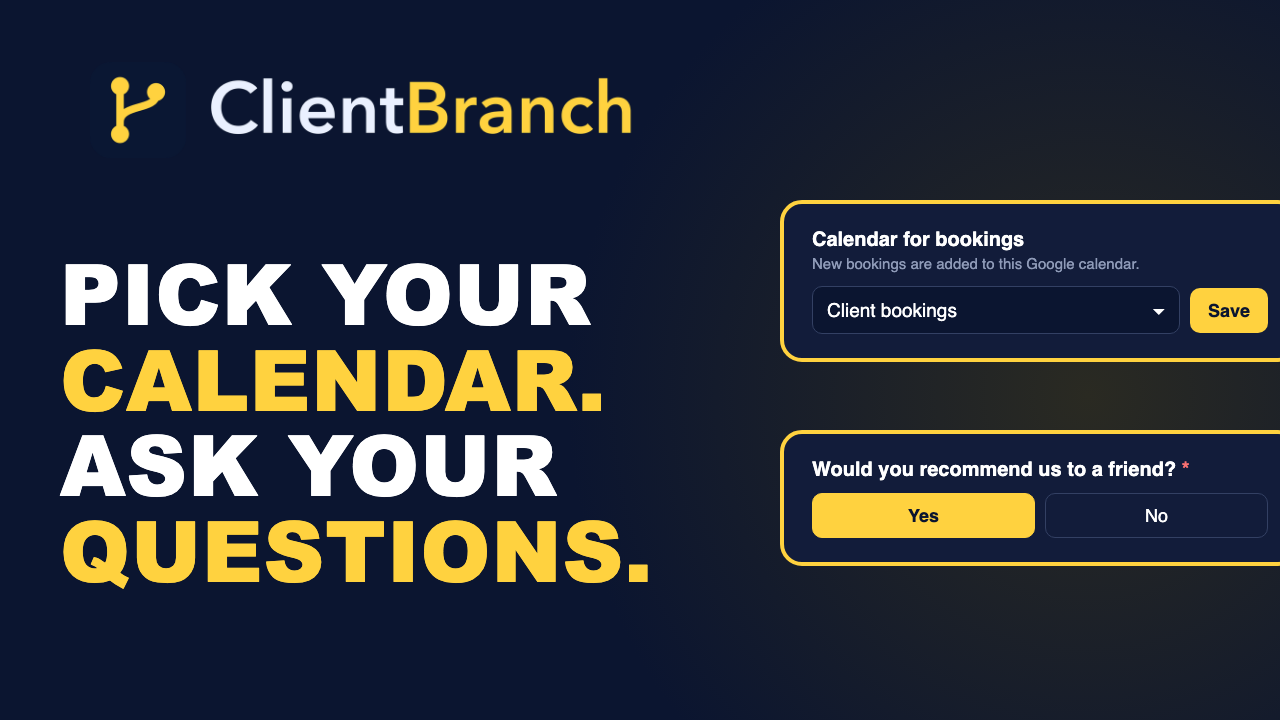
Two updates that came straight from customer requests: pick the exact Google calendar your bookings land on from a simple dropdown, and add your own questions to your review page so every review tells you more than a star rating.
Some of the best updates are the small ones that remove a daily annoyance. This week we shipped two of them, both straight from customer requests.
The first lets you choose which Google calendar your bookings go to, from a simple dropdown, instead of digging around in Google for a calendar ID. The second lets you add your own questions to your review page, so every review you collect tells you something useful beyond the stars. We also added a Copy link button right where you edit your review page, so sharing it takes one tap.
Here is what each one does, why it matters, and how to set it up in a couple of minutes.
The problem with "it all goes on my main calendar"
When you connect Google Calendar to ClientBranch, two things happen. Your existing Google events block those times on your booking pages, so nobody can book you when you are already busy. And every confirmed booking is added to Google, so your day is in one place.
Until now, bookings went to your main Google calendar unless you knew the ID of another one and typed it in. Most people never did, because finding a calendar ID means opening Google Calendar settings, scrolling to the integration section and copying a long string of letters and numbers.
That is fine if your main calendar is your work calendar. But a lot of you live a more mixed life than that. Your main calendar holds the school run, the dentist and date night. Your work sits on a separate calendar, maybe one your assistant or partner can see. Or you keep client sessions on their own calendar so you can color them, share them, or hide them when you are planning a day off. When bookings land in the wrong place, you end up copying events across by hand, or worse, missing one.
Now you just pick it from a list
On Calendars, Connections there is a new section called Calendar for bookings. It shows the calendar you are using now. Press Choose calendar and you get a dropdown of every Google calendar you can add events to, with your main one marked so you can tell it apart.
Pick the one you want, press Save, and you are done. From that moment, new bookings are added to that calendar, and busy times on that same calendar block your booking slots. Bookings already on Google stay exactly where they are, so nothing moves around under you.
The first time you press Choose calendar, Google asks you to let ClientBranch see your list of calendars. That is all it reads: the names, so it can show you the list. Approve it and you come straight back to the page with the dropdown open. You only do this once.
Setting it up, step by step
- Go to Calendars and open the Connections tab.
- If you have not connected Google yet, press Connect Google, pick your account and approve.
- Under Calendar for bookings, press Choose calendar.
- Approve the calendar list on Google's screen the first time you do this.
- Pick your calendar from the dropdown and press Save.
Prefer the old way? Press Or enter a calendar ID and paste one in. Type primary for your main calendar.
A tip: give your bookings a calendar of their own
If you do not already have a separate calendar for client work, this is a good moment to make one. In Google Calendar, create a new calendar and call it something like Client bookings. Come back to ClientBranch, press Choose calendar, and it appears in the list straight away.
Now every booking lands on its own calendar, which gives you a few nice extras for free. You can give it a bold color so client time jumps out of your week. You can share just that calendar with an assistant without exposing your personal life. And on a day off, you can hide it in one click and see only what is left.
If you work with a team, each person connects their own Google account and picks their own calendar. Your bookings go to yours, theirs go to theirs, and conflicts are checked per person.
Reviews that tell you more than a star rating
Now to the second update. Your ClientBranch review page already does the hard part. Happy clients are invited to post publicly on Google or Facebook, and anyone less than happy is routed to private feedback that comes straight to you, so a bad day never lands on your public profile.
But a star rating and a few words only tell you so much. Often the thing you really want to know is something specific. Which service did they book? How did they hear about you? Would they recommend you to a friend? What nearly stopped them from booking?
You can now ask exactly that. Add your own questions to your review page, and every client sees them right under the feedback box, whether they gave you five stars or two.
Three kinds of question
Each question can take one of three answer types, so you can match the question to the answer you want:
- Short answer for quick facts, like which service they booked or which town they came from.
- Paragraph for anything that deserves a proper reply, like what made the biggest difference for them.
- Yes / No for a fast tap, like whether they would recommend you. These show as two big buttons, which are easy to hit on a phone.
Tick Required on any question every client must answer before they can submit. Leave it unticked to keep it optional. You can add up to ten questions and put them in any order with the arrows, though in practice two or three good ones get far more answers than ten.
Setting up your questions
- Go to Reputation and open the Settings tab.
- Scroll to Your questions and press Add question.
- Type the question and choose Short answer, Paragraph or Yes / No.
- Tick Required if you need an answer every time.
- Press Save settings.
Every answer shows on that review in the Reviews tab, right under what the client wrote. If you later reword or remove a question, the answers you already have keep the wording the client saw, so nothing gets lost or mixed up.
Your answers stay private
This is the part that makes custom questions so useful. The answers never appear on your review wall or your website. Only the rating, the name and the review itself go public, and only when you approve it.
That means you can ask things you would only want to read yourself. What nearly stopped you from booking? Was anything confusing about getting here? What should we do more of? Clients tend to be more honest when they know the answer is just for you, and those answers are where the real improvements come from.
A few questions that work well for most service businesses:
- Which service did you book with us?
- How did you first hear about us?
- Would you recommend us to a friend? (Yes / No)
- What is one thing we could do better?
Over a few months, those answers add up to a clear picture. You will see which referral sources bring your happiest clients, which services earn the warmest words, and what to fix first.
One tap to copy your review link
Last, a small one. On Reputation, Settings, under Your collection page, your full review link now sits in its own box with a Copy link button beside it. Press it and the link is ready to paste into a text, your email signature, a QR code on your reception desk, or a social post. If you change your link, the box updates to the new address, and links you sent before keep working.
Try them today
Both updates are live now, with nothing to switch on. The calendar picker works on every plan, and review questions are part of Reputation on Studio and above. Head to Calendars, Connections to choose your booking calendar, then to Reputation, Settings to add your first question. Five minutes, and your calendar and your reviews both start working a little harder for you.
As always, these came from customers telling us what would make their day easier. If there is something on your list, reply to any of our emails and tell us. We read every one.
Try ClientBranch free for 15 days
Get booked, get paid, and keep clients coming back, all from one place. No card required, cancel anytime.
Start my 15-day free trial