Host a Webinar That Sells, Without Zoom: Offers, Polls, Replays and Every Guest Tagged
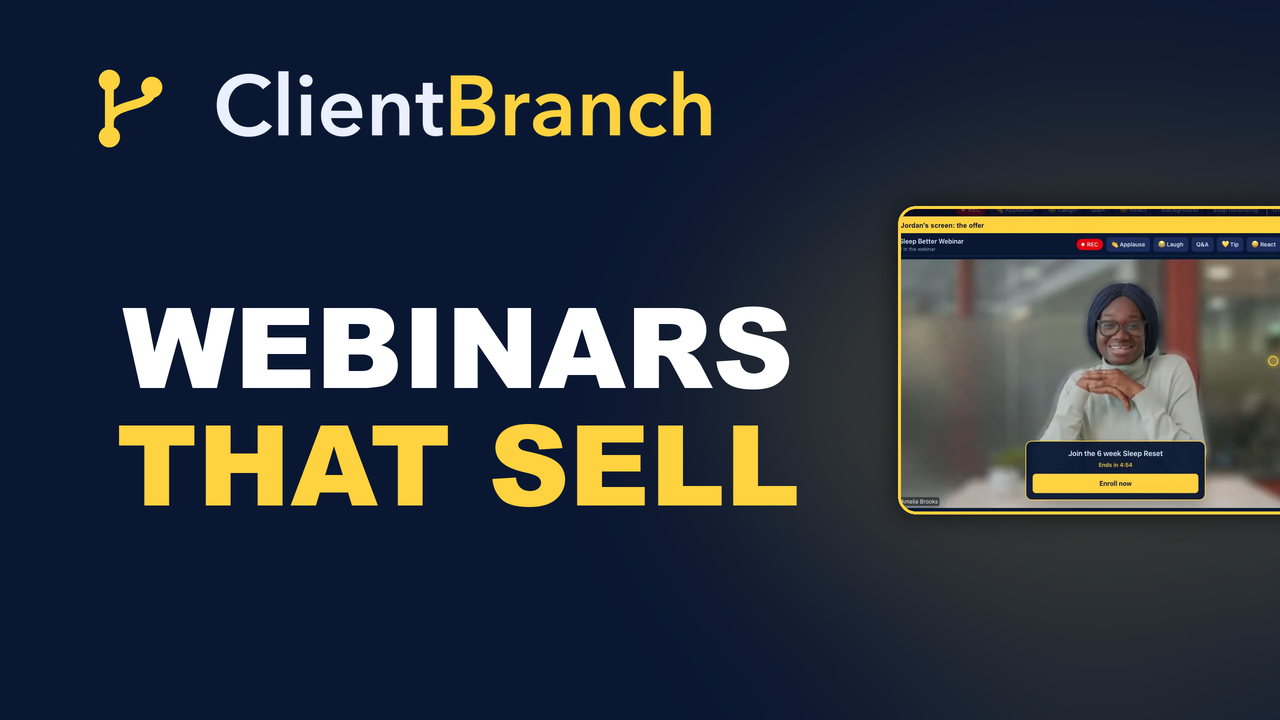
ClientBranch now has its own webinar rooms. Guests watch in their browser with nothing to download, you push an offer with a countdown to every screen, and everyone who comes, clicks or misses it is tagged on their contact, ready for your follow up.
A webinar is one of the best ways a small business can sell. One hour, one room full of people who raised their hand because they want what you teach, and one clear offer at the end. When it works, a single webinar can fill a program for a month.
The trouble is everything around the hour itself. The webinar software lives in one place, the registration page in another, your contacts somewhere else, and the follow up in a fourth tool. After the webinar you are exporting a spreadsheet of attendees, guessing who clicked your link, and trying to remember who registered but never showed up. By the time the follow up goes out, the moment has passed.
ClientBranch now has its own webinar rooms, built into the same place as your events, contacts and automations. Guests tap a link and watch in their browser. You present, push an offer with a countdown to every screen, run polls and take questions. And every guest who attends, clicks your offer, or registers and never comes is tagged on their contact, so your follow up starts on its own. Webinars are part of the Growth plan, with no extra webinar subscription to pay for.
Watch it first
The video above walks through the whole thing in about nine minutes, from creating the room to the replay page at the end. The rest of this post covers what each part does and why it matters for your sales.
A webinar room with a link that never changes
Under Meetings in the left menu, type a name, change the type to Webinar and press Create. That is your webinar room. You are on stage, and everyone else watches, chats, reacts and raises a hand.
The link never changes, so you can run every webinar you ever do from the same room, put the link in your emails, and reuse it next month without setting anything up again. Guests open it on any phone or computer and watch in the browser. There is no app to install and no account to make, which matters more than it sounds: every download step on the way into a webinar costs you attendees.
The room's settings are short and plain:
- Public or private. Public lets anyone with the link in. Private adds a passcode, and people who registered through your event skip it with their own link.
- Guests join muted, so a big audience arrives quiet.
- Allow recording, so you can turn the webinar into a replay. Everyone is told and asked to agree before anything is kept.
- Price to join, for paid webinars. Guests pay on your own Stripe before they get in.
- Where to send everyone at the end. Add your booking or sales page, and every guest lands on it the second you press End for all.
That last one is quietly one of the most valuable settings in the whole feature. The moment your webinar ends is the moment your audience is most interested. Instead of a blank "the meeting has ended" screen, they are looking straight at your calendar or your checkout.
Registration that knows exactly who came
Most webinars start with an event page, and that is where ClientBranch connects the dots. Open your online event under Events, and under the join link tap your webinar room. That is the whole setup.
From then on, everyone who registers gets reminders, and their ticket carries a Join the event online button that is their own personal link. When they tap it, their name is already filled in and the webinar knows exactly who they are. No more matching a list of first names in a chat log to a list of registrations.
That is what makes the rest of this possible. Because every attendee is a real contact, everything they do in the room can be written onto their record.
Offers with a countdown, on every screen
This is the part that sells. While you present, press Offer, type a headline, the button text and the link it opens, like your checkout, your store or your booking page. Under Countdown, choose how long it stays open, and press Show to everyone.
A gold card with your button appears on every guest's screen, counting down. You can also schedule it to appear a few minutes ahead, so it lands right as you finish your pitch. When a guest clicks, the link opens in a new tab, so the webinar keeps playing behind it and they never lose their place.
Here is the follow up benefit. Every guest who clicks is tagged Clicked offer on their contact. They are your warmest leads, and now you know exactly who they are. An automation can send them a personal note that evening, while someone who never clicked gets a softer reminder instead.
Polls, Q and A, and a room that feels alive
A webinar where nobody can take part feels like a video. These tools turn it into a room:
- Polls. Type a question and up to six answers, and launch it. Guests tap an answer and watch the results update live. Close it to show everyone the final numbers. It is a great way to open, and an even better way to find out what your audience is struggling with right before you present your offer.
- Q and A. Guests ask questions in a list separate from the chat, and vote up the ones they want answered, so the most wanted questions rise to the top. You answer out loud and mark each one answered.
- Raise hand and bring on stage. When a guest raises a hand, bring them on stage so they can turn on their microphone and camera. A live testimonial from a happy client is worth ten slides. Send them back to the audience when they are done.
- Show mode. Applause and laugh buttons that everyone in the room hears, made for live shows and big moments.
- Tip jar. Guests pick an amount and pay on your own Stripe in a new tab, and every tipper is added to your contacts.
For bigger webinars, Make co host gives a helper the host buttons, so they can run the offer and the questions while you present. Lock room stops anyone new joining once everyone is in, and Mute everyone silences the room in one tap.
After the webinar, the follow up is already sorted
Open the room's settings and recordings and everything from the webinar is waiting under Attendance: who came, when they joined, how long they stayed, who clicked your offer, and the results of every poll.
Below that is the list most webinar tools never give you: Registered but did not come. One button tags all of them as no shows. Pair that tag with an automation and every no show gets the replay and a second chance at your offer, without you lifting a finger.
So after a single webinar, your contacts are split three ways on their own. People who attended. People who clicked your offer. People who registered and missed it. Each group gets the follow up that suits it, which is where most of the money from a webinar is made.
A replay page that keeps selling
A minute or two after you stop the recording, it appears under Recordings. Press Make replay page, trim the start and end if you like, and press Make the page. You get a shareable page with the full video and the same offer button underneath.
Send it to your no shows, post it on social media, or put it in your welcome emails. Your webinar keeps selling long after the live hour is over. You can also set every recording to make its replay page automatically.
Why run your webinars here
You could keep paying for a webinar tool and stitching it to everything else. But the real value of a webinar is not the hour of video. It is knowing who came, who wanted to buy, and who needs a second nudge, and acting on it quickly. When the webinar room, the event page, your contacts and your automations all live together, that happens on its own.
- Nothing for guests to download, so more of your registrations become attendees.
- An offer with a countdown on every screen, and every click tagged.
- Attendees, clickers and no shows split for your follow up automatically.
- A replay page with your offer, ready a few minutes after you finish.
- Included on the Growth plan, with no separate webinar subscription.
Running private one to one sessions too? Those have their own rooms, with a waiting room, session notes and recordings your clients keep, and their own guide.
Open Meetings, create a webinar room, and link it to your next event. The full written steps are in the Webinars help guide.
Try ClientBranch free for 15 days
Get booked, get paid, and keep clients coming back, all from one place. No card required, cancel anytime.
Start my 15-day free trial