
The Complete Guide to AI Landing Pages: Build One That Converts, Then Make It Yours
Everything in one place: the seven sections every landing page needs and why their order matters, how to brief AI so the draft is good, then how to restyle it, animate it, pick brand fonts and fix the small details that make a page look finished. With both tutorial videos.
Most landing pages fail for a reason that has nothing to do with how they look. They fail because somebody generated one in ninety seconds, admired it, published it, and never asked what job any part of it was doing.
AI has made that first draft almost free. Describe your offer and in about a minute you have a headline, a problem section, testimonials, an offer, an FAQ and a button. That is a genuine head start. It also creates a new problem: when every page starts from the same kind of draft, a lot of pages start to look the same, and a page that looks like a template does not earn the trust it takes for a stranger to book a call or hand over a card number.
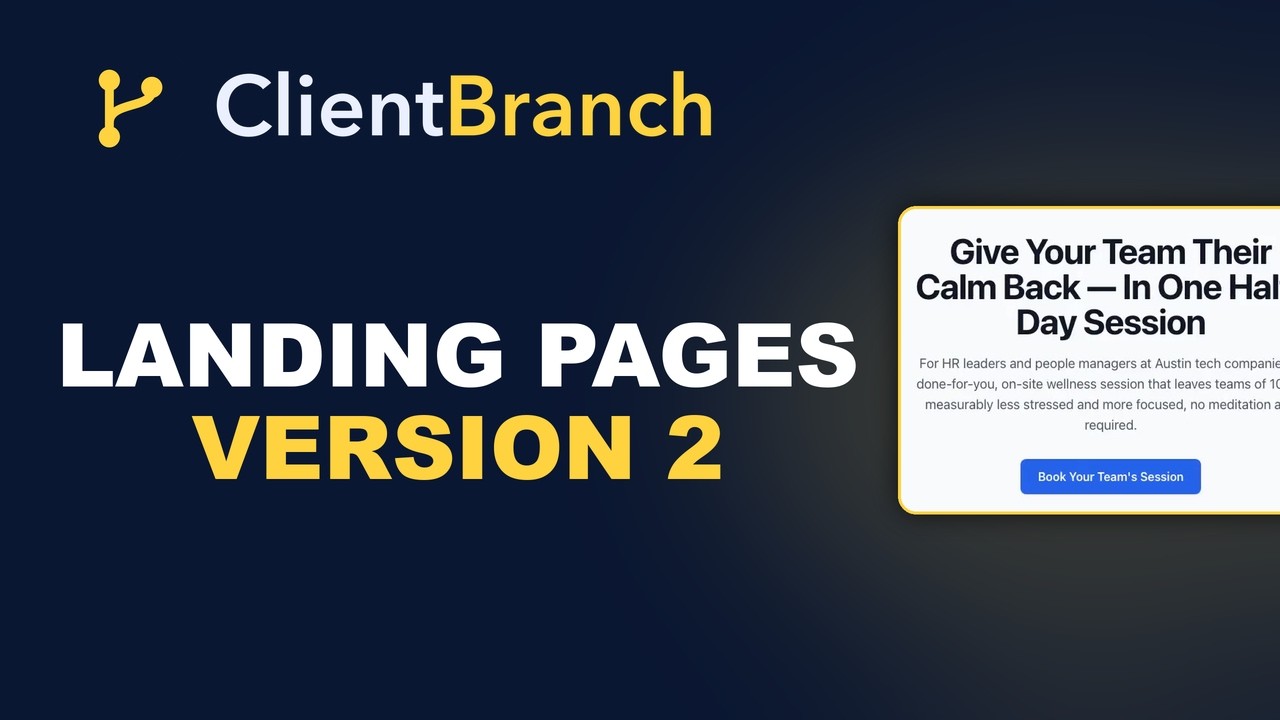
This guide covers both halves. Part one is how to build a page that converts: the structure, the brief and the sections that turn visitors into bookings. Part two is how to make that page unmistakably yours: page styles, motion, fonts and the small fixes that make it look finished. The video above walks through part two; the one further down covers part one.
Part one: build a page that converts

Watch: Describe Your Offer, Let AI Build The Landing Page
Want the formula in more depth? Read The Seven Sections Every Landing Page Needs, In Order, the companion to this guide.
A landing page is a corridor, not a room
Your website is somewhere people wander around. Home, About, Services, back to Home. That is the right shape for somebody deciding whether you are real.
A landing page is the opposite shape. One page, one action, no menu, no exits. Somebody arrived from an ad, an email or a QR code, already half interested, and the page has one job: walk them from where they are to the single thing you want them to do. Every extra link you add is another door out of the corridor.
So if you find yourself adding a navigation bar to a landing page, what you want is a website page. Build both, and link between them. Just do not build one pretending to be the other.
The seven sections, in this order
There is a formula for the corridor. It is not new, and it works because it matches the order questions arrive in a buyer's head. ClientBranch builds it into every new page, and the AI follows it without being asked.
- Outcome headline. Lead with the result they want, not the name of your product.
- The problem. Name the pain they are feeling right now, in their words.
- Social proof. Real buyer quotes, high up, before you ask for anything.
- The offer stack. Exactly what they get, with the price owned rather than hidden.
- Who it is for. Qualify the right buyer so the wrong ones take themselves out.
- FAQs. Kill the objections standing between them and yes.
- One repeated call to action. The same action, over and over, with nothing competing.
Four of those are worth spelling out, because they are the four everybody gets wrong.
Lead with the outcome, not your name for it
"Introducing the Clarity Package" means nothing to somebody who has never heard of you. "Stop losing an hour a day to your inbox" means something immediately, to exactly the person who has that problem. Your product name is a label you invented. The outcome is the thing they were already thinking about before they arrived.
Proof goes before the ask, not after it
The instinct is to save testimonials for the bottom, like a closing argument. But somebody who has not been given a reason to trust you is not still reading by then. Put real quotes from real buyers high on the page, before you have asked for anything at all.
Own the price
Hiding the price feels like it keeps people in the conversation. It does the opposite. It tells a reader either that the price is embarrassing or that they are about to be handled by a salesperson, and both send them to whoever states a number. Put the number on the page, next to exactly what it includes.
One action, repeated, and nothing else
A page with three different asks converts worse than the same page with one. Book a call, buy the thing, join the list: pick one, then repeat that same button down the page so it is always within reach at the moment somebody decides. No social icons, no "read our blog", no menu bar. Every one of those is a polite exit sign.
Ways to build it, and you can mix them
- Edit the ready made structure. Every new page opens with the seven sections already there, each carrying a prompt explaining its job. Type over them.
- Generate from a brief. Describe the offer and your connected AI writes the whole page to the formula. It replaces whatever is on the page, so use it on a fresh one or when you want a clean redraft.
- Build it by hand. Add, reorder and remove sections yourself.
- Start from a template or copy a page you already have, then make it yours.
Most people end up mixing them: generate a draft, hand edit two sections, and use the rewrite button on the one section that never quite landed.
What a good brief looks like
A weak brief gets a generic page, which is where the "AI pages all look the same" complaint comes from. A strong brief answers five things: who it is for, what you offer, the goal, the tone, and any sections you must have.
Something like: a premium page for corporate wellness workshops, aimed at HR managers, goal is to book a discovery call, confident and warm but professional, with a hero, three benefits, two testimonials, an FAQ and a booking call to action. You can also paste a reference address of a page whose style you like, and the AI uses it for structure and tone.
The AI runs on your own key from Claude, ChatGPT or Gemini, connected once under Settings. You pay your provider directly, a page costs a cent or two, and there is no markup on top. You get the result as a draft you own and can edit, not something locked inside a template.
The sections that make it a machine
Three section types connect the page to the rest of your business rather than to an inbox. A booking calendar, so somebody books a real slot without leaving. A lead form, so an inquiry becomes a contact record. And a payment block, so they can buy on the page. That is the difference between a page that generates emails you have to process and a page that fills your calendar while you are asleep.
Part two: make it look like yours
Once the words are right, it is time for the look. None of this needs a designer, and most of it takes one click.
Restyle the whole page in one click
Page style changes the look of every section at once. There are six looks to start from:
- Clean is the default: simple, bright and easy to read.
- Airy adds more space, soft grey bands and rounded buttons.
- Bold contrast puts a dark band across the top so the headline hits hard.
- Dark luxe turns the whole page dark, with your color on the buttons.
- Editorial goes warm and left aligned, with outline buttons, like a magazine.
- Vibrant tints the page in your brand color for something louder.
Try a few. Each one writes real settings into every section, so once you have picked a look you can still fine tune any single section in its own Design panel. A style is a starting point, not a cage.
Add motion that guides the eye
A little movement makes a page feel alive and leads the eye down it. Every section can glide in as your visitor scrolls, and there are seven entrances to choose from, including fade up, slide in from either side, zoom in and bounce in.
You can animate the whole page at once, or one section at a time, and choose whether a section arrives as one piece or whether the heading, the text and the button rise into place one after another. Every time you pick an animation the preview plays it, and a button replays every entrance whenever you want another look. Fade up is the most popular for a reason: it is noticeable without being distracting.
Pick fonts that sound like your brand
The same headline reads as calm, luxurious, bold or friendly depending on the typeface. ClientBranch has thirty five free Google Fonts built in, each shown in its own style in the list, grouped the way designers think about them: clean modern fonts, then classic serifs, then bold display fonts, and handwritten scripts at the bottom.
Set a heading font and a text font for the whole page in one move, or give a single section its own fonts. A simple rule that rarely fails: pair a characterful heading font with a plain, readable text font, like Playfair Display for headings and Lato for the body.
Click what you see to change it
Hover over the live preview and each section gets an outline. Click a heading, a paragraph, a card, a price or a photo, and the editor jumps straight to that section, opens it, and highlights the exact box that holds what you clicked. You look at the page the way a visitor will, and you change it right there.
The small fixes that make a page look finished
Center the cards
Four benefit cards on a three column row leaves the fourth one sitting alone on the left, and it looks like a mistake. Open the section's Design panel, find the Cards box, and set Place the cards to Center. The same fix works for a single pricing card or two plans that hug the left.
Match the line on each card to your brand
Feature cards can carry a colored line across the top: a short line, a full width line, a dot or none, in any color you like.
Size and shape your photos
Shrink a photo anywhere from twenty to a hundred percent, change its shape to landscape, wide, square, portrait or its own shape, and set the frame to rounded, slightly rounded, square, a circle or no frame at all.
Break up long text
Press Enter in any text box and a new line starts exactly there on the page. Press it twice for a gap between paragraphs. Short lines are much easier to read on a phone.
Preview it, publish it, share it
Hit Preview and the page opens at a real address, exactly as visitors will see it, with an amber bar reminding you it is not live. Log in on your phone and look at it there, because that is the device most of your traffic is holding. The page stays a draft until you publish, and unpublishing takes it straight back off the internet.
Publish and it is live on a clean address straight away, or on your own domain for free on every plan. Every published page has a copy link button with the full live address, ready for an email, a text message, an ad or your link in bio, and you can turn it into a QR code for flyers and the screen at the end of a talk.
A checklist before you publish
- Does the headline promise the outcome your visitor wants, not the name of your product?
- Is there proof high on the page, before the first ask?
- Is the price on the page, next to what it includes?
- Is there one action, repeated, with no competing links?
- Does the page style match the feel of your brand, and are the fonts readable on a phone?
- Are the cards centered and the photos sized and framed?
- Have you broken long text into short lines, and previewed it on your own phone?
Build one this week
Pick the one offer you most want to sell in the next month. Not the whole catalog. One. Write the brief in four lines, generate the page, and go through it section by section asking what job each one is doing. Then give it a page style, a font pair and a gentle animation, and fix the small details. That is a page that converts like it was written by a strategist and looks like it was made by a designer, without paying for either.
If you want to go deeper on the structure itself, read the seven sections guide next.
Everything here works the same way in the ClientBranch website builder, so once one page looks like yours, the rest of your site can match. Start a free trial of ClientBranch and put your first page up today.
Try ClientBranch free for 15 days
Get booked, get paid, and keep clients coming back, all from one place. No card required, cancel anytime.
Start my 15-day free trial