Every Page You Publish Now Has a Copy Link Button
The fastest way to a booking or a sale is the right link, sent at the right moment. Here is where to find Copy link in ClientBranch and where to put your links.
You built the page. It looks good. Now somebody asks for the link, and you are on your phone, halfway through a conversation, trying to remember whether it was slash lp slash something or slash book slash something else.
That small moment costs more than it looks. A client who asks for your booking link is ready to book right now. Every second you spend hunting for the address is a second they spend deciding they will do it later. And later is where bookings go to die.
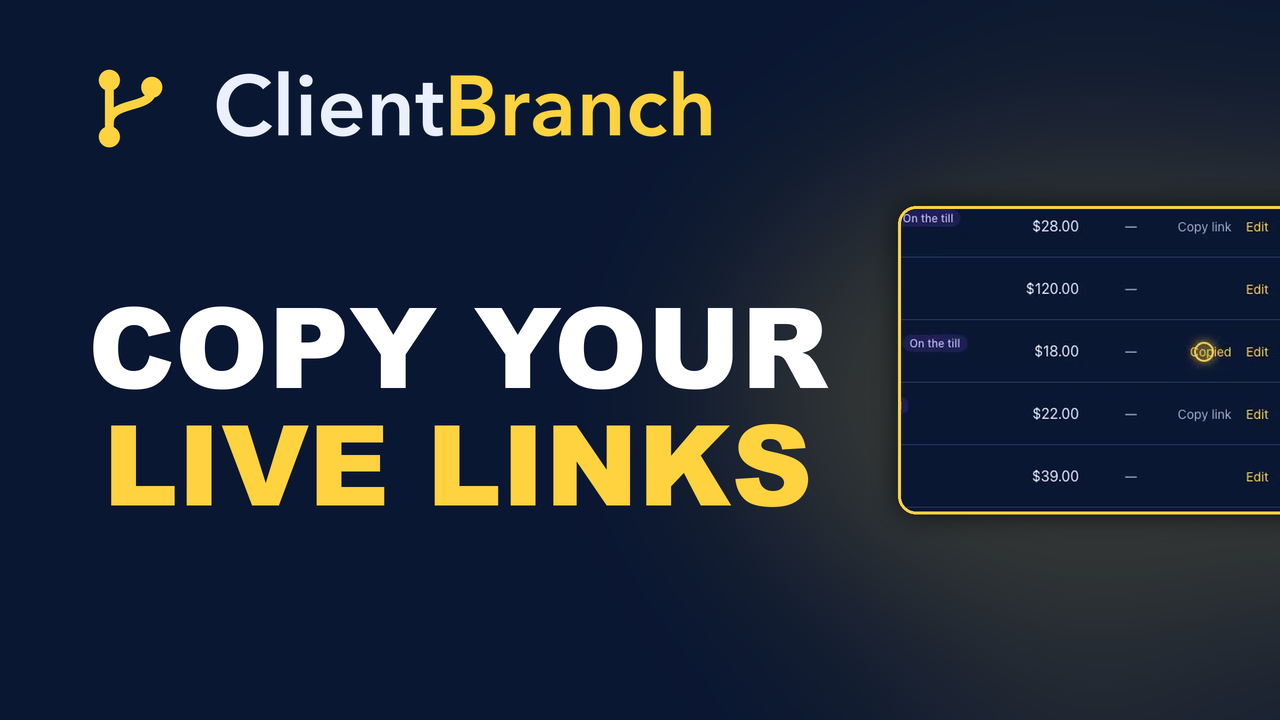
So every page you publish in ClientBranch now has a Copy link button, right where you manage it. One click puts the full live address on your clipboard, ready to paste into a text, an email, a post or an ad.
Why a link is worth more than a website
Most small businesses think about their website as the thing people find. In practice, most of your bookings and sales come from a link somebody was handed. A text from you. A post in a local group. The link in your Instagram bio. A reply to a question in your inbox.
Nobody types your web address from memory and then clicks around looking for the right page. They tap a link, and they land wherever that link sends them. If it sends them to your home page, they have to find the booking page themselves. If it sends them to the booking page, they book.
That is the whole idea behind this feature. The best link is the one that lands somebody on the exact thing you want them to do, and it should take you one click to get it.
Where you will find Copy link
It sits in the same place in every list: on the row or card of anything that is published or live.
- Landing pages, website pages, blog posts, forms and quizzes under Sites.
- Your store, and every single product that is in it, on the Products list under Payments.
- Booking calendars, on each calendar's card and again inside each booking type.
- Events, on each event's row.
- Invoices, proposals and contracts under Payments. A contract gives you one link for each person who still has to sign.
- Courses, offers, videos, libraries and your channel under Courses and VOD.
- Rentals: your booking site, each property, and each cleaner's private job list.
Anything still in draft does not get the button, because there is no live page to share yet. That is on purpose. It stops you sending somebody a link that shows them a page that is not there.
Your booking link belongs everywhere
If you only copy one link, make it your booking link. Every booking type has its own page, and Copy link sits right on its card.
Think about how many times a week somebody asks when you are free. The usual answer is a string of messages. Tuesday? No, Tuesday is full. What about Thursday afternoon? I have a two o clock. Could you do three? Every one of those messages is a chance for the conversation to stall.
Send the link instead. They see the times you are open, they pick one, and it lands in your calendar with their details attached. You did not have to do anything but paste.
Put the same link in your email signature, your social bio and your Google Business Profile, and people who find you can book without asking first.
Link to one product, not the whole store
Every product in your online store has its own page, and Copy link on the Products list copies that page, not the front door of the store.
This matters most when somebody asks about something specific. A customer asks if you still have the lavender candle. You could send them the store and let them look. Or you could send them the candle, with its photo, its price and the buy button right in front of them. The second one sells.
It works the same way for ads. If you are paying for clicks on a single product, send those clicks to that product's page. Every extra click between the ad and the checkout loses people.
The button only shows for products that are ticked to appear in your store, and only while the store is switched on, so you never copy a link to a page that is hidden.
Get paid by text
Invoices have a Copy link too. It copies the page where your client can view the invoice and pay by card.
Email is a fine way to send an invoice, until the email lands in a spam folder, or gets buried under forty others, or your client simply prefers texts. Then the invoice sits unpaid and you are left chasing.
Copy the link and text it. Or paste it into the chat while you are already talking about the job. Clients pay faster when paying is one tap away from the conversation they are already in.
Proposals and contracts work the same way. Copy the proposal link to send it any way you like. For a contract, each signer gets their own private signing link, so when two people still need to sign, you see a button for each of them, with their name on it.
Share your content where people already are
Blog posts, events and quizzes are built to be shared, and now each one is a click away from a post.
- Events belong in local Facebook groups and on posters. Copy the link, paste it in a post, and people can RSVP or buy a ticket without leaving their phone.
- Blog posts get found when people link to them. Share each new post on your social accounts and in your newsletter, and link old posts when a client asks a question you have already answered.
- Quizzes make a great social post because they ask something. Pair the link with a question and people click to find their answer.
Turn any link into a QR code
Not every client finds you on a screen. Some of them are standing at your market stall, sitting in your waiting room, or watching you speak.
Copy any link, open QR Codes under Sites, and turn it into a printable code. Put your booking link on your business card. Put your store link on a sign at the stall. Put a course or a free guide on the last slide of a talk. People point their phone camera at it and land exactly where you want them.
Your own domain, automatically
Once you connect and verify your own domain for a landing page, your website or your blog, Copy link uses it automatically. The link you share carries your brand, not ours.
Until then, it uses your free ClientBranch address, which works exactly the same. You do not need a custom domain to start sharing today.
Watch it in two and a half minutes
The video at the top of this post walks through it on a real account: a landing page, a booking calendar, a single store product and an invoice, and then the Share your links guide in the Help Center, which lists every place the button lives.
If you are already on ClientBranch, open any list of things you have published and look for Copy link on the right. If you are not, start a free trial, publish your first booking page, and send the link to the next person who asks when you are free.
Try ClientBranch free for 15 days
Get booked, get paid, and keep clients coming back, all from one place. No card required, cancel anytime.
Start my 15-day free trial